
Editor Workflow.
How to find your tasks, grab the footage, and deliver a finished edit back to Adam — start to finish. Follow these steps every time. You only ever see the tasks assigned to you.
Log in & find your tasks
Open app.finessesocial.au in Chrome and log in. You land on Your Tasks — everything currently assigned to you to edit.
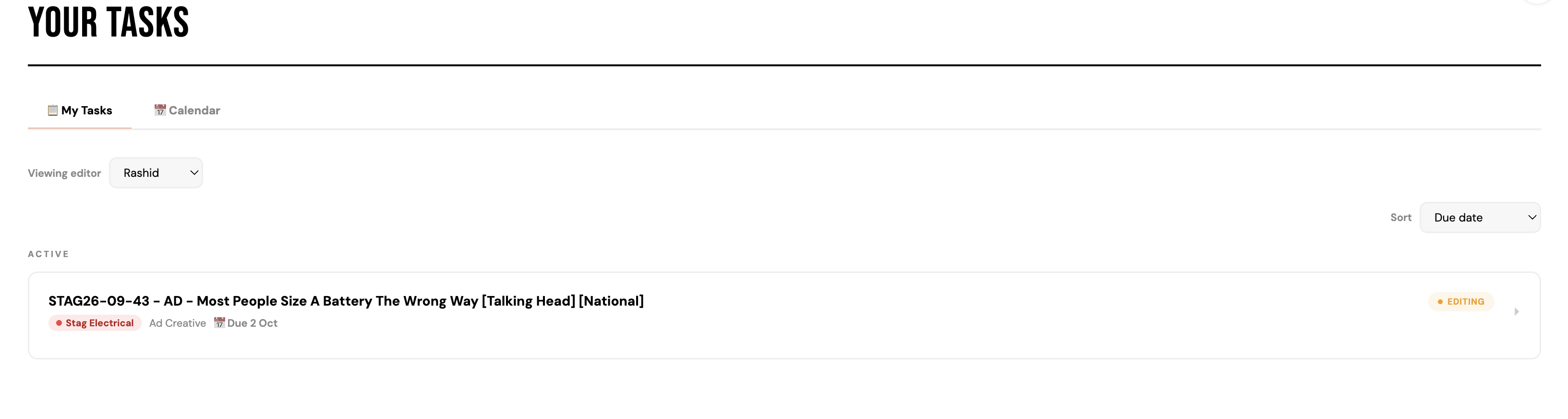
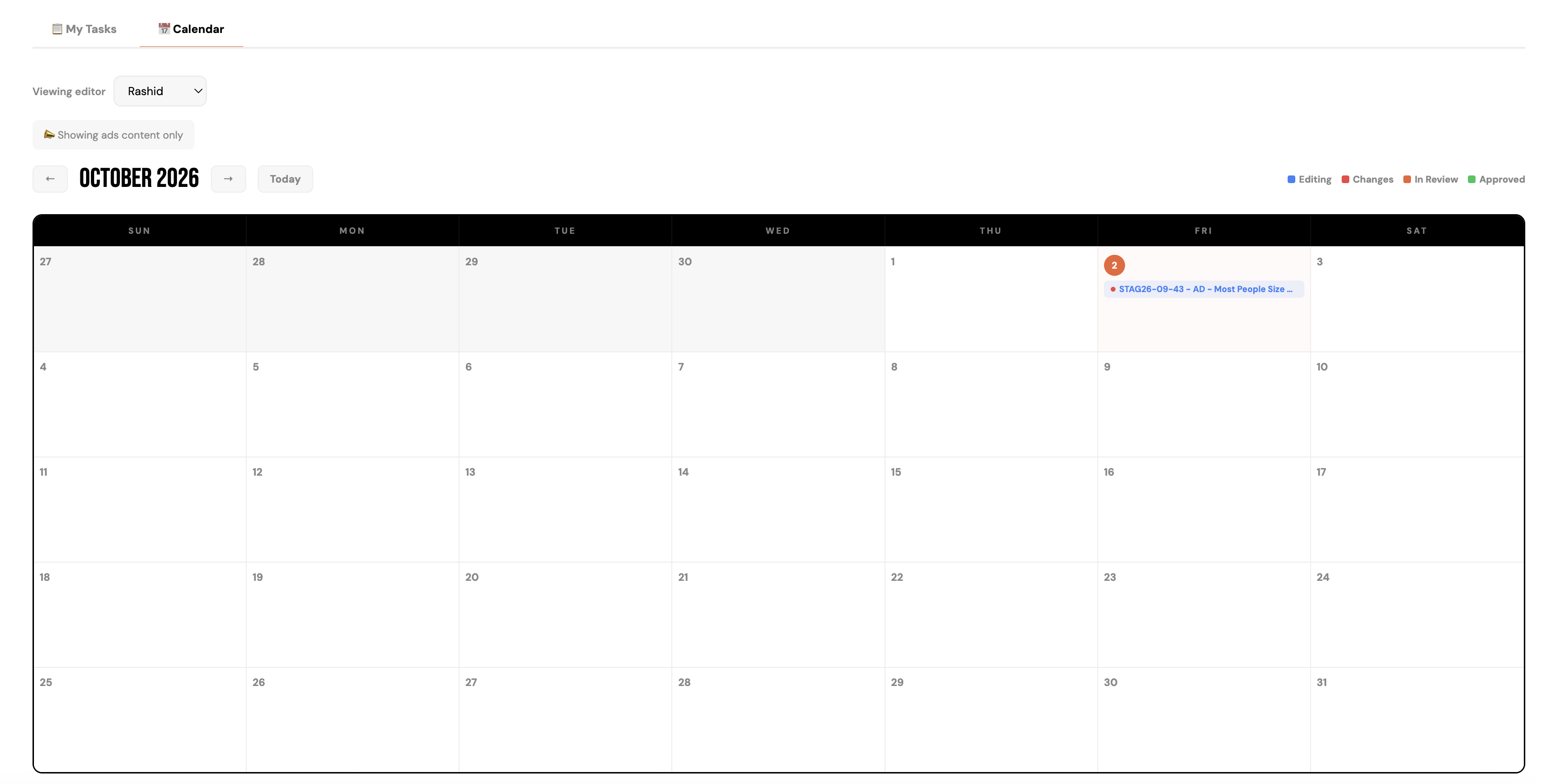
The Calendar tab shows the same tasks by their due date, so you can see what's due when.
Open the task & read the brief
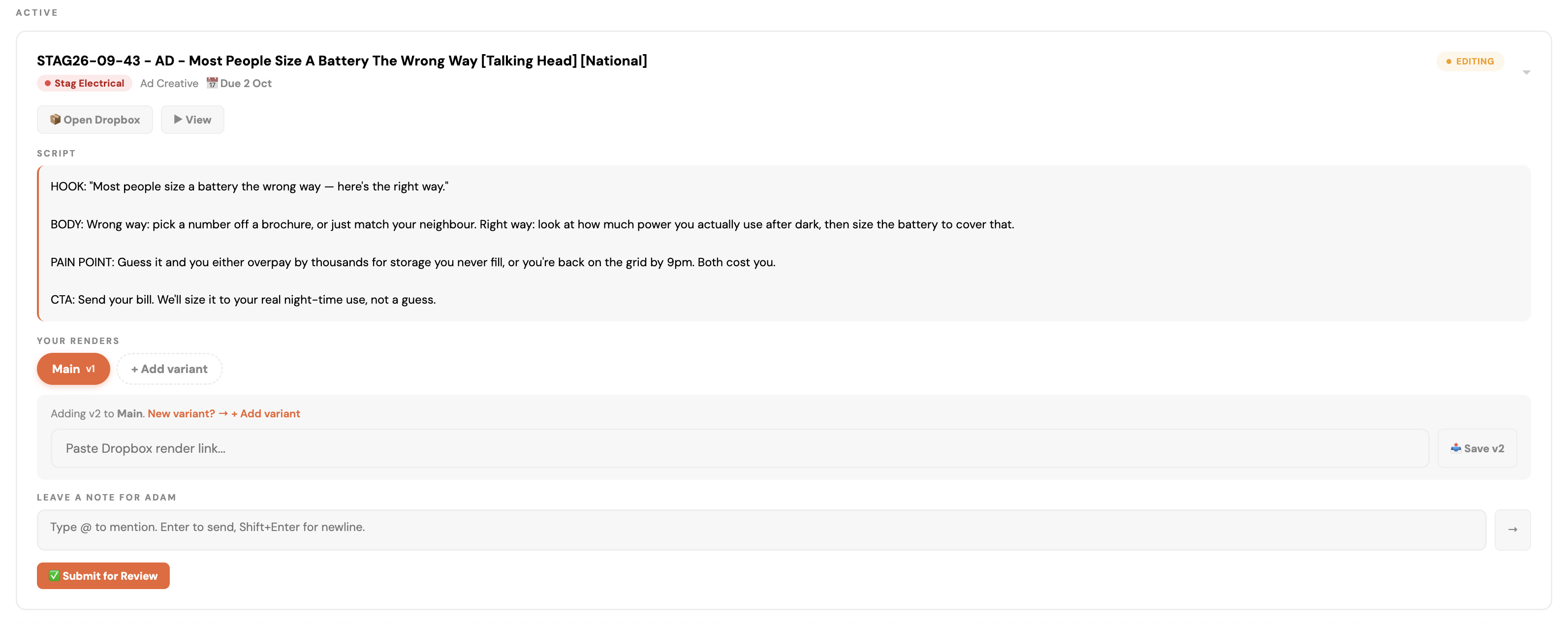
Click a task to open it. Read the script / brief and any notes so you know exactly what to cut before you start.
Open the task's Dropbox folder
In the task, click the Dropbox button to jump straight to this task's folder.
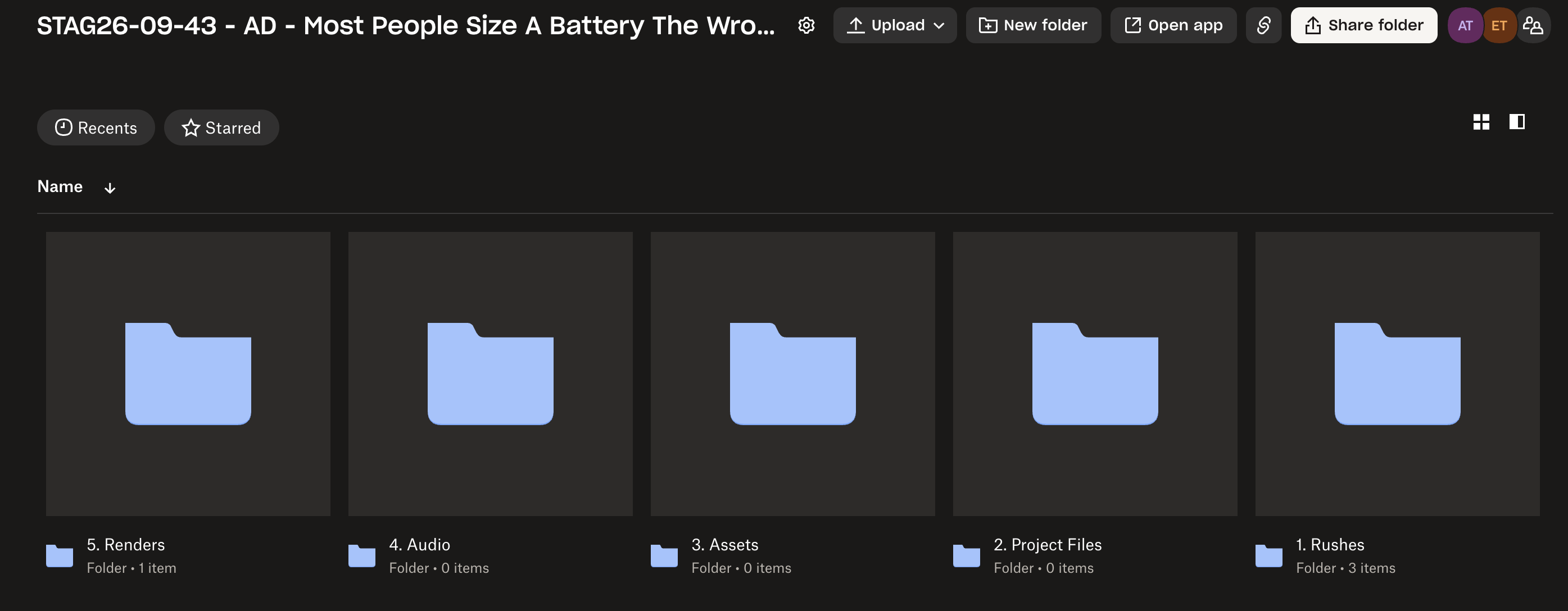
That opens the task folder, laid out the same way every time — 1. Rushes through 5. Renders. Your raw footage is in 1. Rushes.
Edit the video
Pull the footage from 1. Rushes and cut the edit to the brief. Keep your project file in 2. Project Files. Follow the edit standards — captions synced to the word, two fonts max, MP4 9:16 1080×1920, named to the task code.
Need b-roll, templates, music, brand assets or LUTs? They all live in the Editor Toolkit → — shared across every job, separate from this task's folder.
Upload your export to 5. Renders
Export your finished video and upload it into the task's 5. Renders folder. That's the only thing that goes in there.

In Dropbox, right-click your uploaded file → Copy link (the share link).
Paste the link & submit for review
Back in Finesse OS, open the task, paste your Dropbox link into the render field, and hit Submit for review. That sends it to Adam.
Review loop
Adam reviews it. If changes are needed, the task comes back to Your Tasks with his notes — re-edit, upload the new version, submit again. If it's approved, you're done — no action needed.